
1. Product Overview
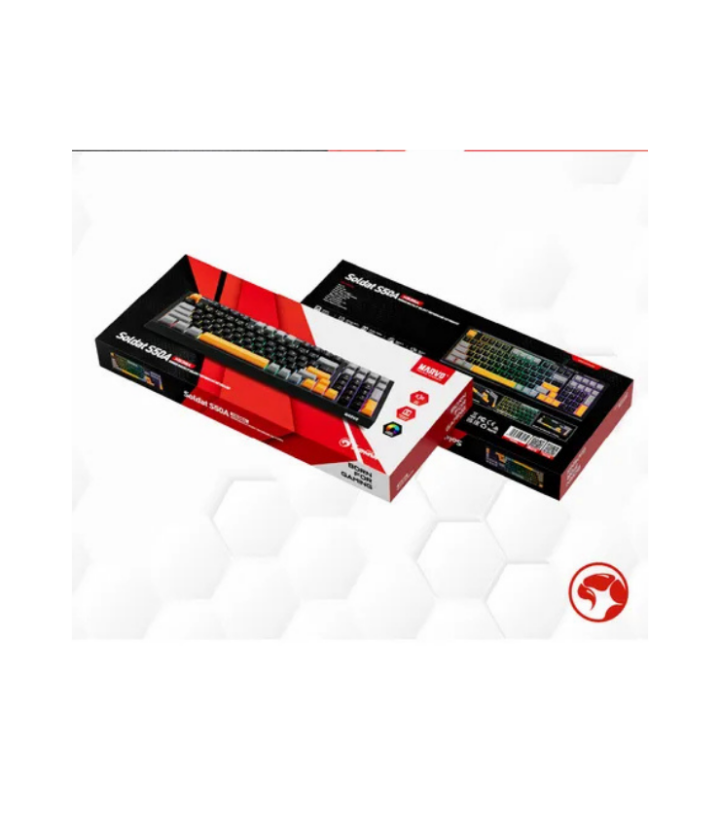
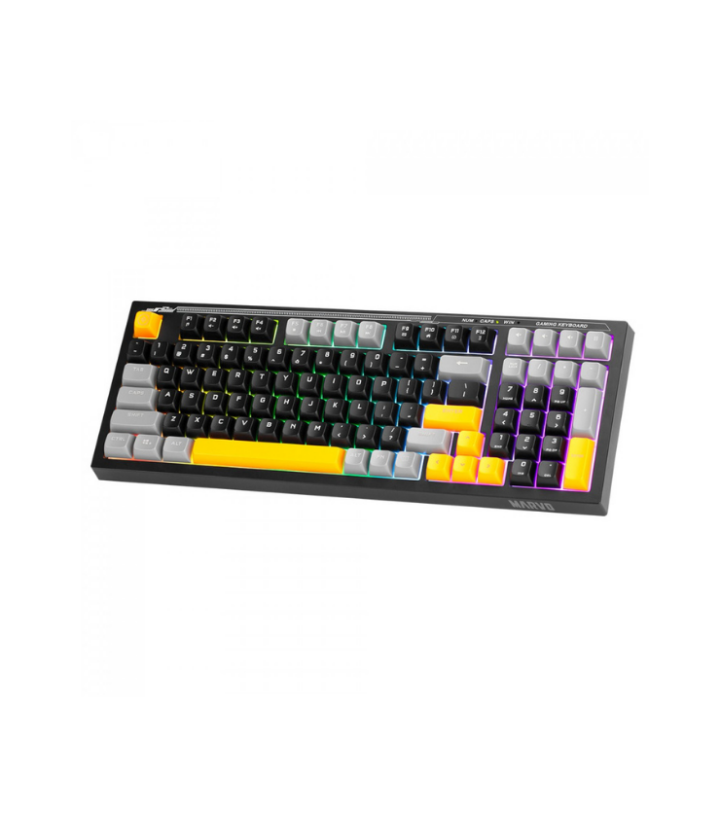
The MARVO K638B Soldat S50B is a wired gaming membrane keyboard designed for an enhanced gaming and typing experience. It features a compact 96% layout with 98 keys, including a full number pad, optimizing space without sacrificing functionality. The keyboard boasts mixed color (rainbow) backlighting, silent switches, and ergonomic design for comfortable use. It connects via a detachable Type-C data cable.
Video: Unboxing and feature overview of the MARVO K638B Soldat S50B keyboard.

 Image: Front view of the MARVO K638B Soldat S50B wired gaming keyboard, showcasing its mixed color backlight and 98-key layout.
2. Setup Instructions
- Unpack the Keyboard: Carefully remove the keyboard and its accessories from the packaging. Ensure all components, including the detachable Type-C data cable and any included documentation, are present.
- Connect the Cable: Insert the Type-C end of the data cable into the port on the keyboard.
- Connect to Computer: Plug the USB-A end of the data cable into an available USB port on your computer (Desktop, Laptop, or Tablet).
- Driver Installation: The keyboard is plug-and-play. Your operating system should automatically detect and install the necessary drivers. No additional software installation is typically required.
- Adjust Keyboard Angle: The keyboard features an adjustable angle mechanism on the underside. Flip out the stands to achieve a comfortable typing position.
 Image: Details of the keyboard, including the Type-C cable connection, ABS three-color keycaps, laser engraved characters, and rainbow backlight.
 Image: Illustration of the keyboard’s ergonomic design, conforming to finger movement rules for comfortable typing, with examples of correct and incorrect hand postures.
3. Operating Instructions
3.1 Basic Operation
- The keyboard functions as a standard 98-key input device upon connection.
- The layout includes a dedicated number pad for full functionality.
3.2 Backlight Control
The keyboard features a mixed color (rainbow) backlight. Specific key combinations for adjusting brightness, modes, or turning the backlight on/off are typically found in the full user manual or through FN key combinations. Refer to the keyboard’s FN key legends for specific functions.
 Image: Top-down view of the keyboard with its vibrant rainbow backlight.
3.3 Multimedia Shortcuts
The keyboard includes 12 multimedia shortcuts accessible via the Function (FN) key in combination with F1-F12 keys, and 4 independent multimedia keys for quick access to common functions.
- FN + F1-F12: These combinations provide convenient and faster control for multimedia playback, music control, browser functions, and more. Refer to the key legends for specific functions (e.g., Play/Pause, Volume Up/Down, Mute, Web Browser, Email).
- Independent Multimedia Keys: Dedicated keys are provided for functions such as Volume Up, Volume Down, Mute, and opening the Web Browser.
 Image: Visual representation of the 12 multimedia shortcuts (FN+F1-F12) and 4 independent multimedia keys for quick access to multimedia and browser functions.
3.4 Anti-Ghosting
The MARVO K638B features 19-key anti-ghosting, ensuring that multiple key presses are registered accurately during intense gaming sessions, preventing missed commands.
 Image: Close-up view of the keyboard emphasizing the 19 anti-ghosting keys, crucial for accurate input during gaming.
4. Maintenance
- Cleaning: Regularly clean the keyboard with a soft, dry cloth. For deeper cleaning, use a can of compressed air to remove dust and debris from between the keycaps. A slightly damp cloth (not wet) can be used for the surface, ensuring no liquid enters the keyboard.
- Keycap Care: The keycaps are made of ABS plastic. Avoid using harsh chemicals or abrasive materials that could damage the keycap finish or laser-engraved characters.
- Cable Management: Handle the detachable Type-C cable with care. Avoid sharp bends or excessive pulling to prevent damage to the cable or connectors.
- Storage: When not in use for extended periods, store the keyboard in a clean, dry place away from direct sunlight and extreme temperatures.
5. Troubleshooting
- Keyboard Not Responding:
- Ensure the Type-C cable is securely connected to both the keyboard and the computer’s USB port.
- Try plugging the keyboard into a different USB port on your computer.
- Restart your computer.
- Test the keyboard on another computer if possible to rule out a computer-specific issue.
- Backlight Not Working/Incorrect:
- Check the keyboard’s FN key combinations for backlight control (e.g., brightness adjustment, mode switching, on/off toggle).
- Ensure no software conflicts are interfering with the backlight settings.
- Keys Not Registering or Double-Typing:
- Clean the affected keys using compressed air to remove any debris that might be obstructing the switch mechanism.
- If the issue persists, it might indicate a hardware fault.
If you encounter persistent issues not covered here, please refer to the official MARVO support channels for further assistance.
6. Specifications


There are no reviews yet.